
How to use Tukanu.
From the first shortcut to the finished file in a few keystrokes. Everything on this page happens on your PC, with nothing uploaded.
1. Install and sign in
Tukanu comes from the Microsoft Store and installs for your Windows user, without administrator rights. Get Tukanu, open it from the Start menu, and choose Sign in: your browser opens tukanuapp.com, you approve the computer, and the palette unlocks. Signing in is free.
- The free plan converts every format and runs most tools, one file at a time.
- Tukanu then works offline. It checks your plan every few hours, and a check lasts 72 hours without a connection.
2. Open the palette
Press Ctrl G in any app. The palette opens at the top of the screen with the search box ready, so you can start typing right away.
- Files selected in File Explorer open already chosen, and results save beside them.
- In File Explorer you can also right-click files and choose Convert with Tukanu.
- The tray icon opens Tukanu too. Change the shortcut in Options.
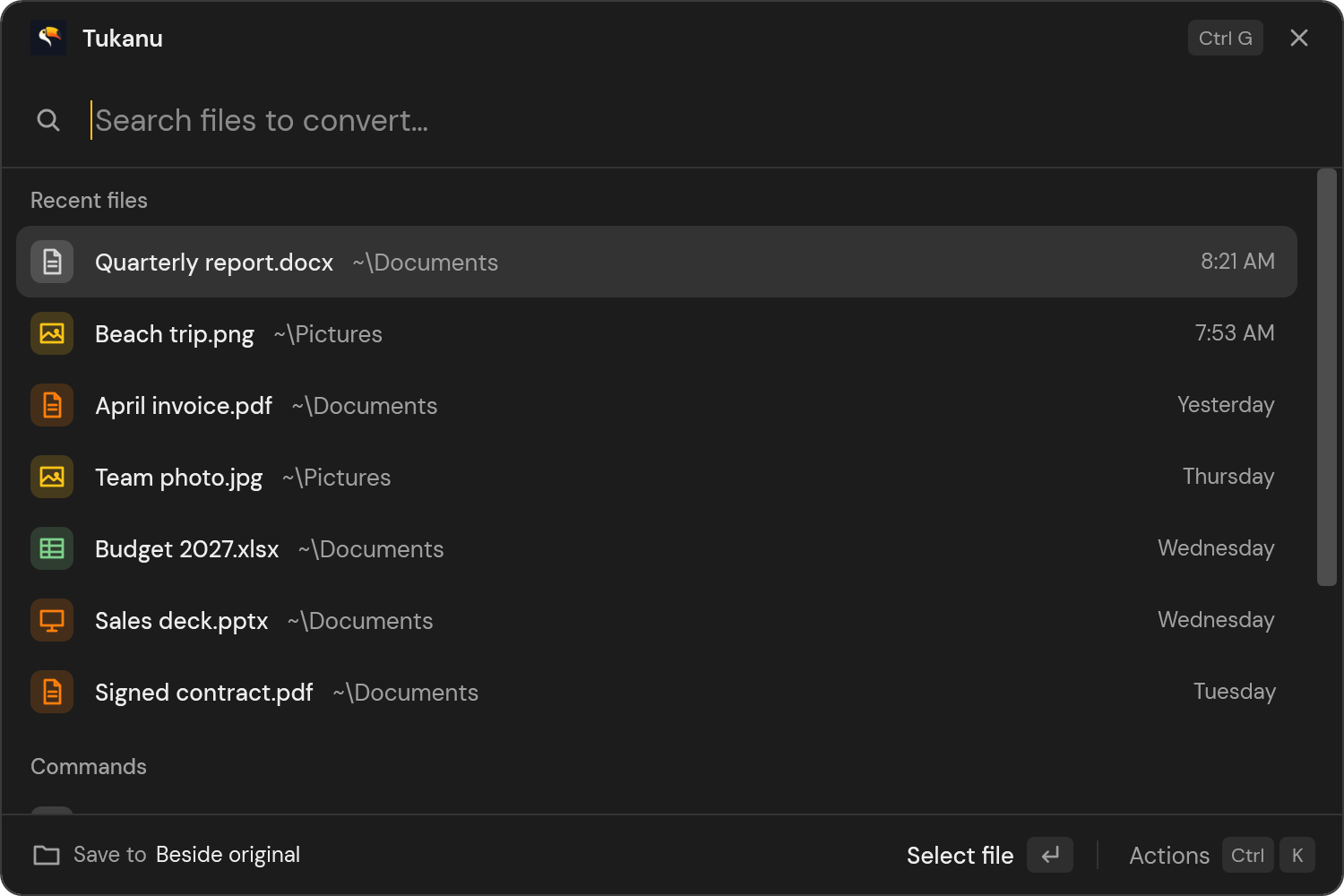
3. Find a file
Recent files are listed first. Type part of a name to search Desktop, Downloads, Documents, Pictures and OneDrive, then press Enter on the file you want.
- Type a path such as C:\ or ~\Downloads\ to browse folders.
- Paste a path, or several from File Explorer's Copy as path.
- Drag files onto the palette, press Ctrl O for the Windows file picker, or Ctrl V for files you copied.
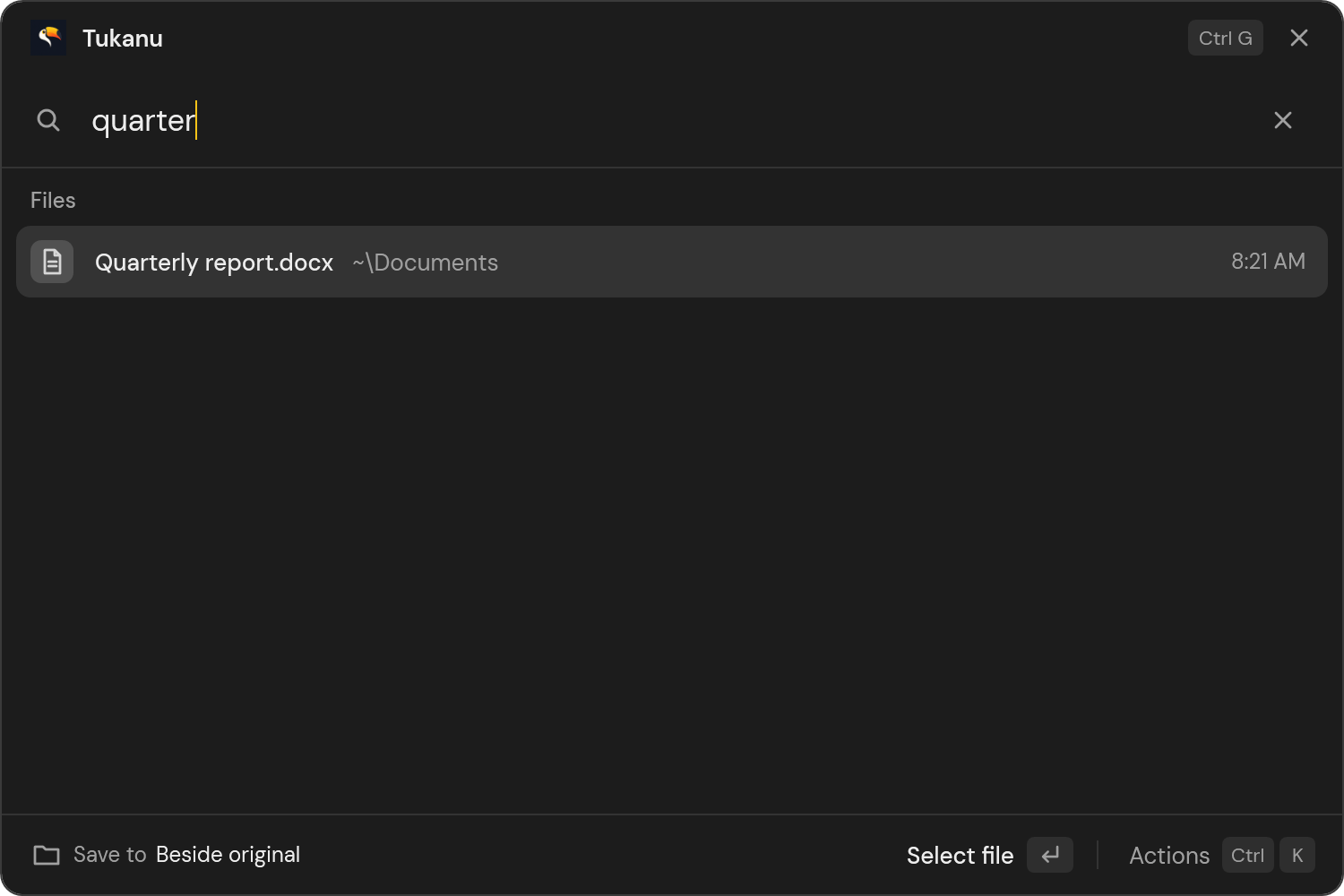
4. Choose what it becomes
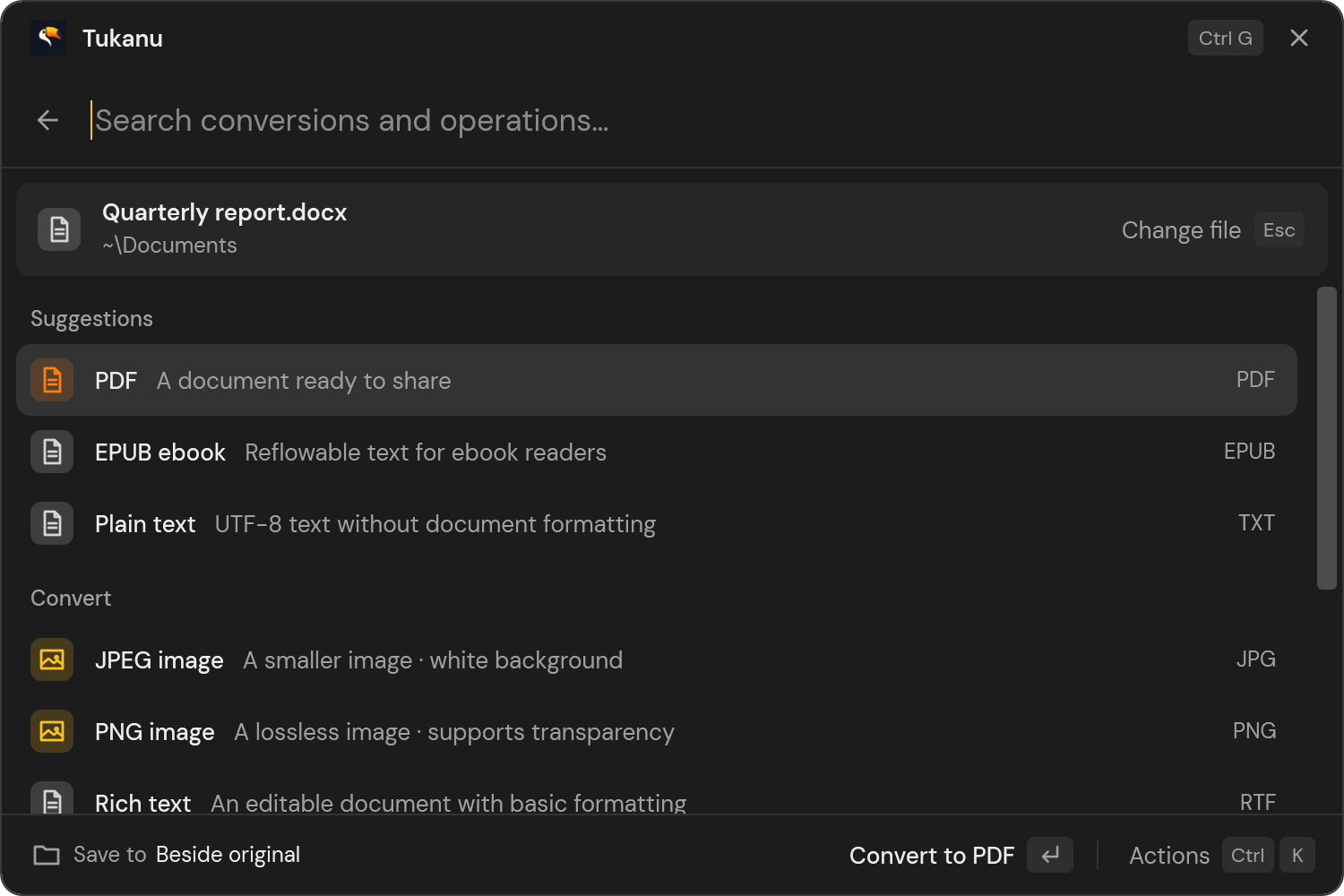
The file is pinned under the search, and the list shows what you can do with it: suggestions first, then every format it converts to and the tools for its type. Type to filter, in English, Portuguese or Spanish, and press Enter.
- Type pdf, png or docx to jump to a format, or compress, rotate or merge to find a tool.
- Use the arrow keys to move the selection while you keep typing.
- Esc or Backspace in an empty search goes back to choose another file.
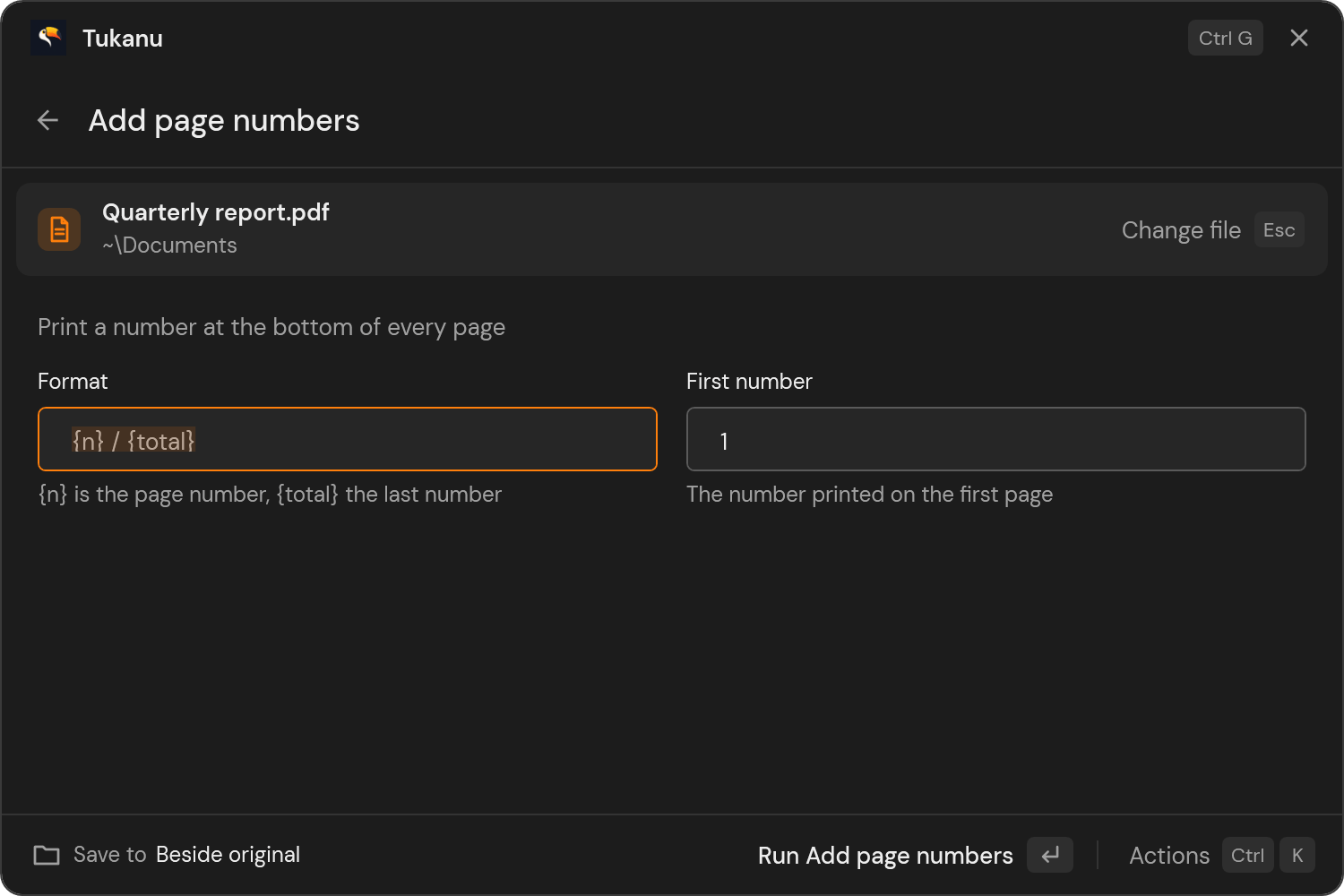
5. Set options, when a tool needs them
Most conversions run straight away. Tools with settings, such as page numbers, a watermark or a password, ask for them in the palette first. Image edits open a visual editor with a live preview.
- Press Enter or Ctrl Enter to run the tool once it's set.
- Combining tools let you order the files before running.
6. Get the result
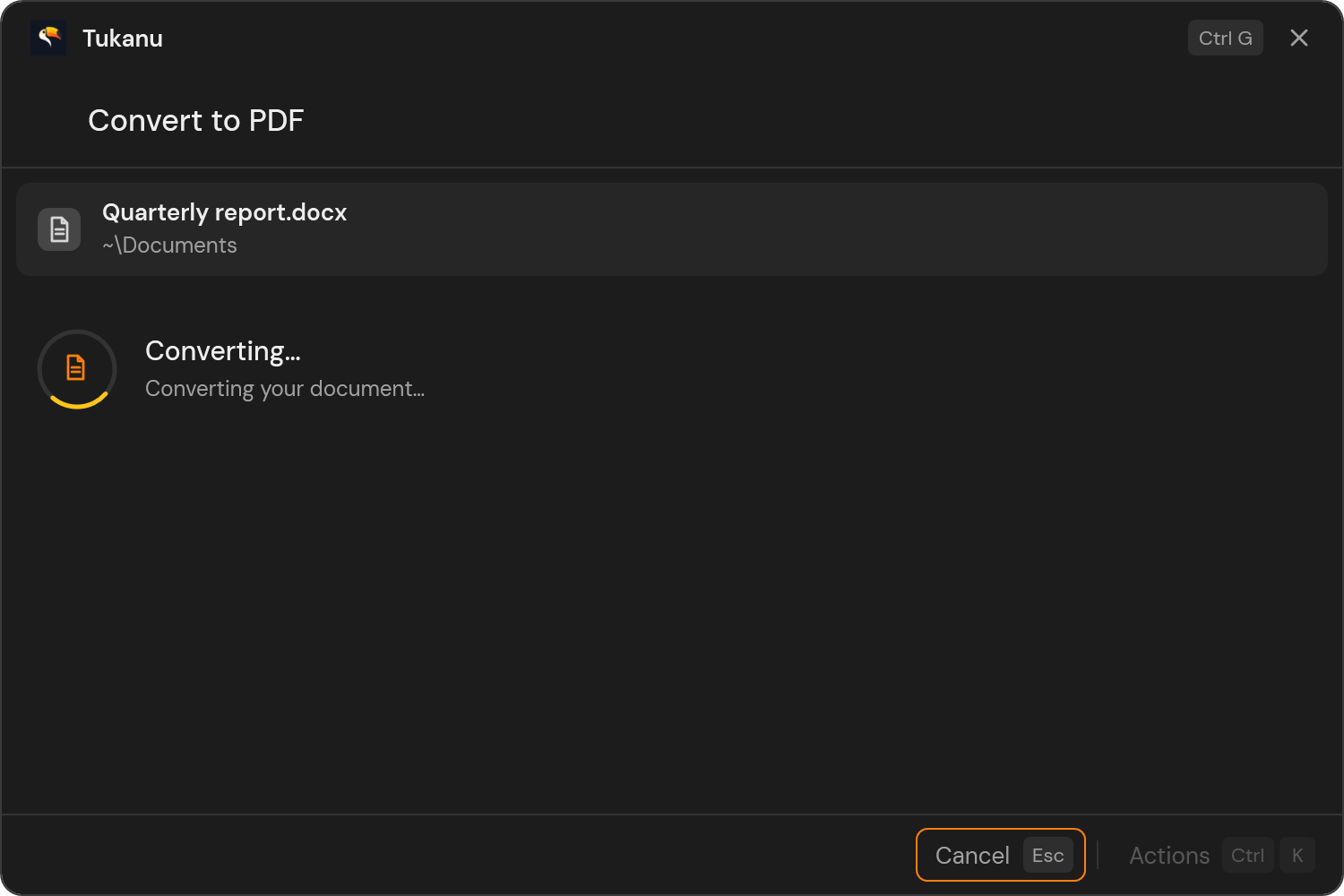
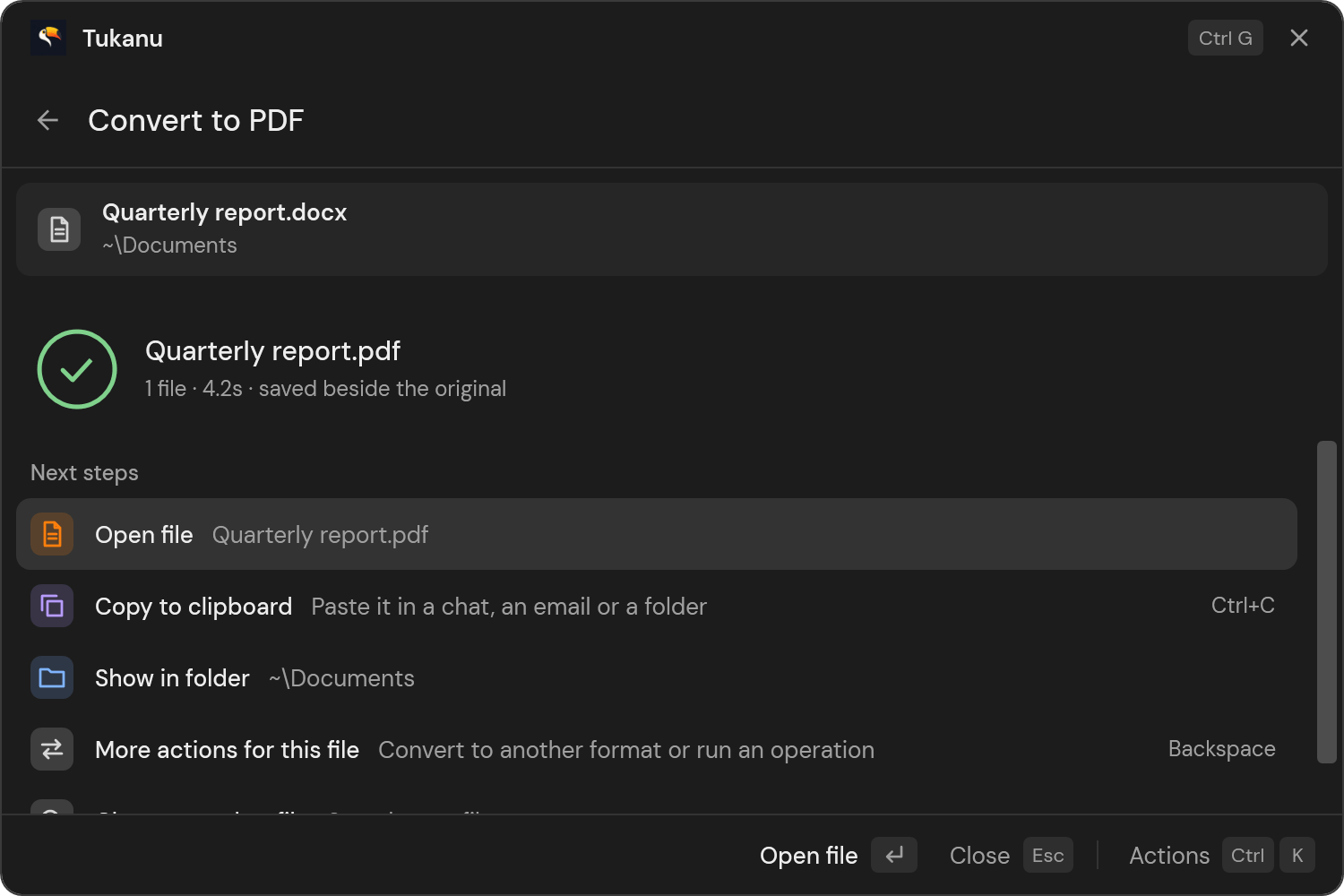
The palette shows the progress while the job runs, then the new file with what to do next: open it, copy it to the clipboard to paste into a chat or email, or show it in its folder.
- Esc cancels a running job, and nothing is left behind.
- More actions for this file takes you back to convert the same file again.
Where results are saved
Tukanu never changes or replaces your files. Each result is a new file, with a number added to its name when needed, such as report (1).pdf.
- Files selected in File Explorer: beside the original.
- Files found in the palette: in your default save folder if you set one (Ctrl D), otherwise beside the original.
- Several files: one new folder with every result.
- Clipboard mode, under Ctrl K: results go straight to the clipboard instead of a folder.
Many files at once
Select several files in File Explorer, or choose Work on a folder, to convert or process up to 500 files in one go. Merging PDFs, combining images and other batch tools work the same way. Batches and combining are part of Pro: see the plans.
Capture the screen
Press Ctrl Shift G, then drag over an area, or click for the whole screen. The capture is saved in Pictures\Screenshots, copied to the clipboard, and opened in the palette, ready to crop, redact, add a background or convert.
Actions, options and language
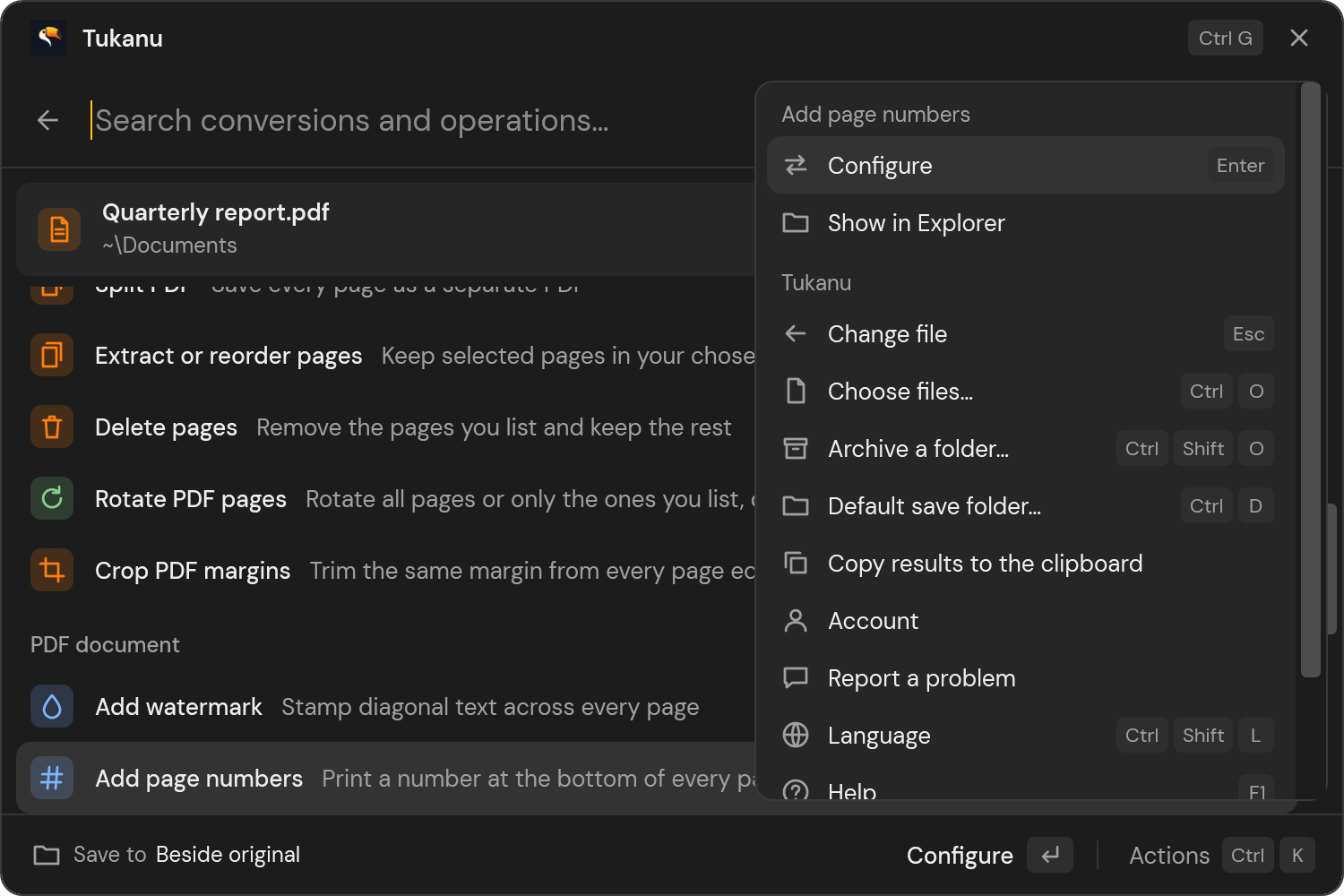
Press Ctrl K for the actions of the selected row and of Tukanu itself: the default save folder, clipboard mode, Options, Language, Help and Report a problem.
- Options (Alt O): shortcut, appearance, start with Windows, and the File Explorer menu.
- Language (Ctrl Shift L): English, Português or Español.
Keyboard shortcuts
Everything works from the keyboard. Press F1 in Tukanu for the full list.
- Open Tukanu from any app
- CtrlG
- Move the selection
- ↑↓
- Run the selected row
- Run result 1 to 9
- Alt1–9
- Go back one step, then hide
- Esc
- Actions
- CtrlK
- Choose files
- CtrlO
- Use files copied in File Explorer
- CtrlV
- Choose the default save folder
- CtrlD
- Copy the result to the clipboard
- CtrlC
- Capture the screen
- CtrlShiftG
- Options
- AltO
- Language
- CtrlShiftL
- Help and every shortcut
- F1
Get help
Choose Report a problem under Help or Ctrl K to send a question, a problem or an idea from the app. You see every detail before it's sent, and file names are replaced with [file]. You can also write to us on the support page.